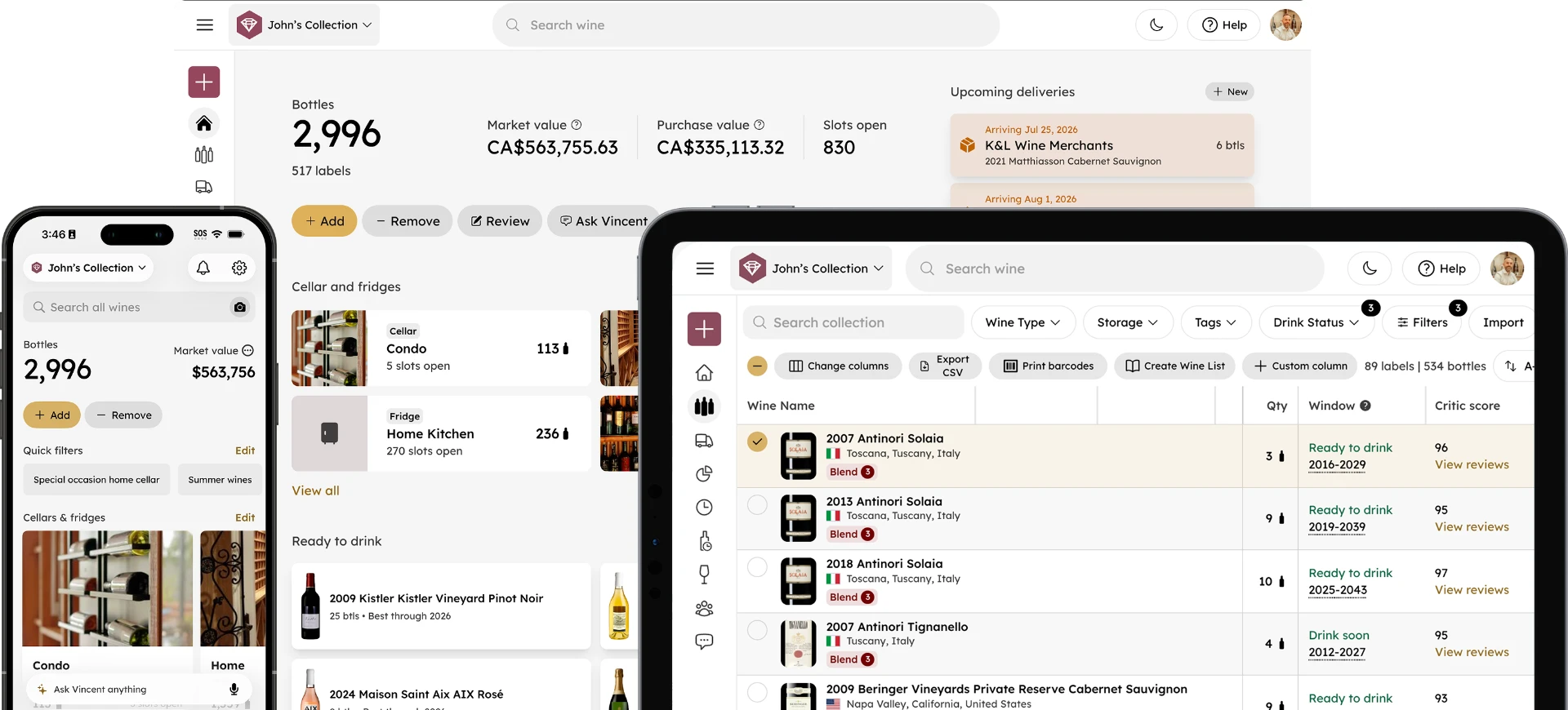
How to Clean Up a Wine Collection Import: 7 Steps
Madeleine Cruickshank
May 19, 2026 · 4 min read

How do you clean up a wine collection import?
Check what did not match, remove duplicates, fix wrong wine matches, then correct vintages, bottle sizes, locations and prices, in that order. Working from identity (which wine is it) to detail (where is it, what did it cost) means you never fix a detail on a record you later delete.
The steps below use InVintory as the example, but the order works in any cellar app. This page covers the clean up after an import. For the move itself, see from spreadsheet to wine app, and for speed, how to import a thousand bottles fast.
What are the seven steps?
Step 1: Check the unidentified wines first
Open the import notification and review the rows that did not match. In InVintory, when an import finishes, the notification says how many wines could not be identified and offers a spreadsheet of exactly those rows. Wines that did not match the database are created for you and go into a review queue, and you can keep editing those bottles while they wait.
Step 2: Remove duplicates from overlapping imports
Delete the second copy of any bottle you imported twice. An InVintory import only ever adds and never merges, so importing a file that overlaps bottles you already have leaves you with two of each. Sort by wine and vintage, compare counts against your source file, and delete the extras. Use delete rather than remove here, because remove records the bottle as drunk, gifted or sold.
Step 3: Fix bottles matched to the wrong wine
Use Change wine instead of deleting and adding again. In InVintory, open the wine, tap the menu and choose Change wine; every bottle on that row moves to the right wine and keeps its storage, slot, tags, price and notes. If only some bottles on a row are wrong, select just those first.
Step 4: Standardize vintages
Correct any vintage that came across wrong, and use NV or a blank for non vintage wines. Edit the year only when the year is wrong. If the wine itself is wrong, go back to step 3, because a vintage change moves the bottle to a different row and leaves behind anything stored against the old one, such as your tasting notes and custom market value.
Step 5: Fix bottle sizes
Check every format other than 750 ml. If the size column was empty, InVintory records every bottle as 750 ml, so magnums and half bottles need correcting. Bulk edit lets you set the size on many bottles at once. For the format names, see wine bottle sizes.
Step 6: Put bottles in the right storage and slots
Move bottles out of any catch all storage, then place them. An import with no storage name puts bottles in a cellar called My Cellar, and it never places bottles into 3D positions. If your file had your own bin or shelf codes, a Custom bottle location column carries them across as text, so you can place each bottle in VinLocate afterward. See keep bottle locations accurate.
Step 7: Check prices, currencies and past bottles
Confirm prices are in the right currency, then move anything you already drank out of your current collection. A price with no currency is recorded in the collection owner's currency, and a row with a removal date goes to Past bottles rather than your cellar. Bottles you drank but imported without a removal date need removing as consumed.
How do you keep the data clean after the import?
Remove bottles the day you open them, and use bulk edit rather than editing bottles one at a time. For the habits that keep a cellar accurate, and the errors to avoid, see common wine inventory mistakes.
Import done and ready to tidy up? Open InVintory on the web or read the import guides in the help center.
Frequently asked questions
Why do I have duplicate bottles after importing?
Because an import adds bottles and never merges them. Importing a file that overlaps bottles already in your collection gives you two of each.
Can I undo an import?
Not as one action. Find the duplicated or wrong bottles with search and filters, select them, and delete them.
Why are some of my imported wines missing drink windows or values?
Wines that did not match the database are created and reviewed. Their drink window and market value fill in once they are approved.
Does an import place bottles in my 3D cellar?
No. Bottles arrive in the storage named on each row, and you place them in VinLocate afterward.
InVintory is available on iPhone, iPad, Android and web. Get InVintory on the App Store, get InVintory on Google Play, or start on the web.