From Spreadsheet to Wine App: A Migration Guide
Madeleine Cruickshank
September 4, 2025 · 4 min read

How do I move my wine collection from a spreadsheet to an app?
Export your spreadsheet as a CSV, import it into your new app, then check the imported data for accuracy before you start relying on it. Most collectors can move a few hundred bottles in under an hour.
Why This Is Worth Doing
A spreadsheet tracks what you own. It doesn't tell you where a bottle physically sits, whether it's ready to drink, or what it's worth right now. Every one of those requires you to update the sheet by hand, and most collectors fall behind on that within a few months. An app handles all three automatically, which is the actual reason collectors switch, not novelty.
Step 1: Export Your Spreadsheet
Save your current file as a CSV. Most spreadsheet tools (Google Sheets, Excel, Numbers) export to CSV directly from the file menu. Keep the original file untouched until you've confirmed the import worked correctly, in case you need to reference it or try again.
Step 2: Map Your Columns During Import
InVintory's collection import template allows you to map your spreadsheet's columns (producer, vintage, quantity, and whatever else you tracked) to the app's fields. Review the mapping before confirming, since a mismatched column, vintage landing in the notes field, for instance, is the most common import mistake.
What if my spreadsheet uses different column names or formats than the app expects?
The import template lets you manually map any column to the correct field, regardless of what you named it. If a column doesn't have an obvious match, you can leave it out or map it to a custom field instead.
Step 3: Check the Imported Data
Spot-check a handful of bottles against your original spreadsheet, especially any with unusual formatting, non-standard vintage entries, or blank fields. Fix anything that landed wrong before you start actively using the app, since it's much easier to correct now than after you've layered new activity on top of it.
Step 4: Set Up What a Spreadsheet Couldn't Do
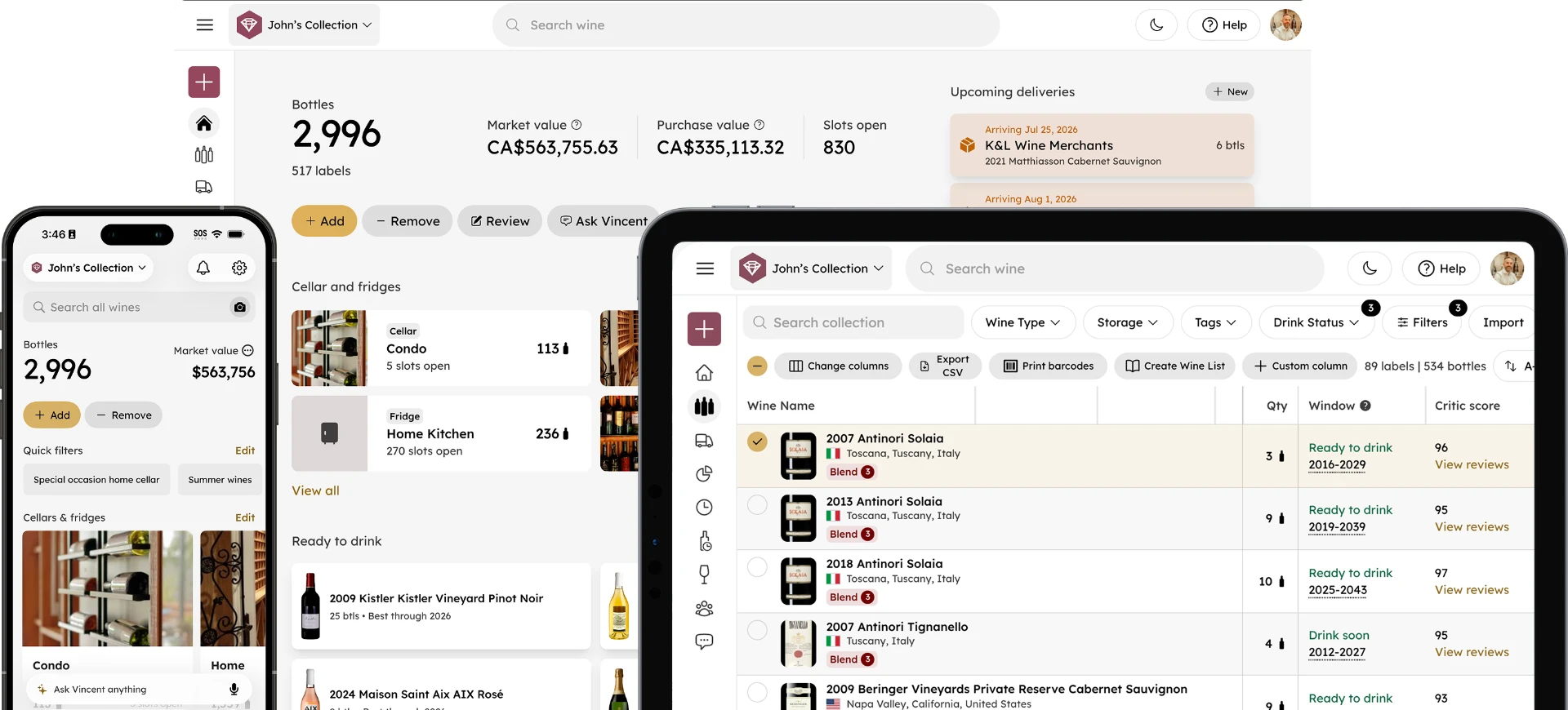
Once your bottles are in, this is where the real upgrade happens. Set up storage locations so VinLocate can map where each bottle physically sits. Drink windows calculate automatically instead of requiring you to track them yourself. Market valuation updates on its own instead of needing manual research, using real transaction pricing data rather than a number you researched once.
See it in action: explore VinLocate's cellar mapping →
Step 5: Keep It Current Going Forward
The habit that made your spreadsheet fall behind, batching updates instead of logging in real time, is worth breaking on the new system too. Log a bottle when you buy it and mark it consumed when you drink it, rather than saving it for a weekly catch-up session.
If You're Moving a Large Collection
For collections in the hundreds or thousands of bottles, a single bulk import is still the fastest path, but it's worth budgeting real time for the verification step, since errors compound at scale. See our guide to importing a large collection quickly for a walkthrough built specifically for bigger moves.
Should I Migrate Everything at Once, or in Batches?
For most collections, migrating everything in one pass is simpler and faster than splitting it up, since a partial migration means tracking two systems until you finish. The exception is a collection with a lot of uncertain or messy data, mismatched vintage formats, incomplete producer names, duplicate entries. In that case, a smaller test batch first lets you catch mapping issues before committing your whole spreadsheet to the same mistakes.
Data a Spreadsheet Usually Doesn't Capture
Beyond the basics (producer, vintage, quantity), most spreadsheets don't have a good place for the details that make a bottle's record actually useful later: a tasting note, a photo of the label, or where and when you bought it. InVintory's Wine Guide feature gives each bottle a dedicated place for this information, so migrating isn't just a like-for-like transfer, it's an opportunity to start capturing detail your spreadsheet never had room for.
If you have any of this information sitting in a separate document or in your memory, migration is the natural point to add it, before the bottle in question gets consumed and the chance to record it disappears. Once everything's in, your home screen becomes the single place to check bottle count, value, and what's ready to drink, instead of a spreadsheet tab you have to remember to open.
Common Migration Mistakes
Importing before cleaning up your spreadsheet carries over years of inconsistent entries (some vintages missing, some producer names spelled differently) into the new system. A quick cleanup pass first saves real time later. For a broader look at the mistakes that undermine cellar tracking generally, see our guide to common wine inventory mistakes.
Moving your data is the easy part. The habits you build afterward are what actually make the switch worth it.
Ready to move your collection over?
Start Your Import With InVintory →
FAQ
Will I lose any data when I import my spreadsheet into a wine app?
Not if you export a complete CSV first and verify the import afterward. Keep your original spreadsheet as a backup until you've confirmed everything transferred correctly.
How long does migrating from a spreadsheet actually take?
For most collections under a few hundred bottles, well under an hour, including verification. Larger collections take longer mainly for the review step, not the import itself.
Can I still use a spreadsheet alongside a wine app?
You can, but most of the benefit comes from fully switching, since running both means updating two systems instead of one, which recreates the exact problem you were trying to solve.
Get your collection organized properly, starting today.